

Professional AI photo repair

Restore & Repair Any Photo with AI for Free

Repair old photos, fix image damage, and recover clearer details with AI photo repair.

Photo repair comparison

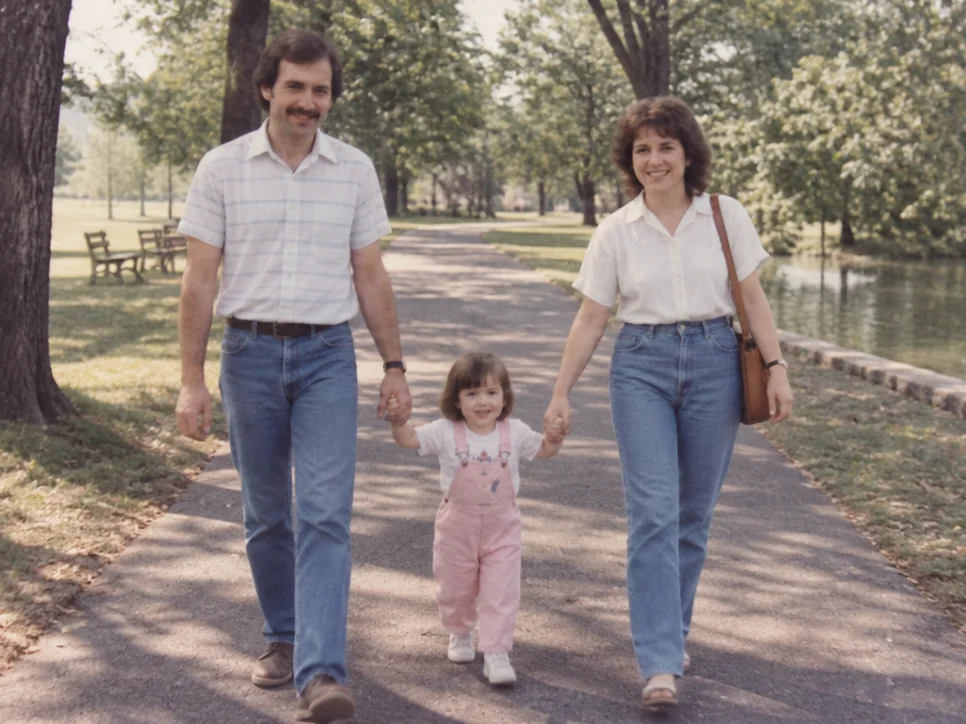
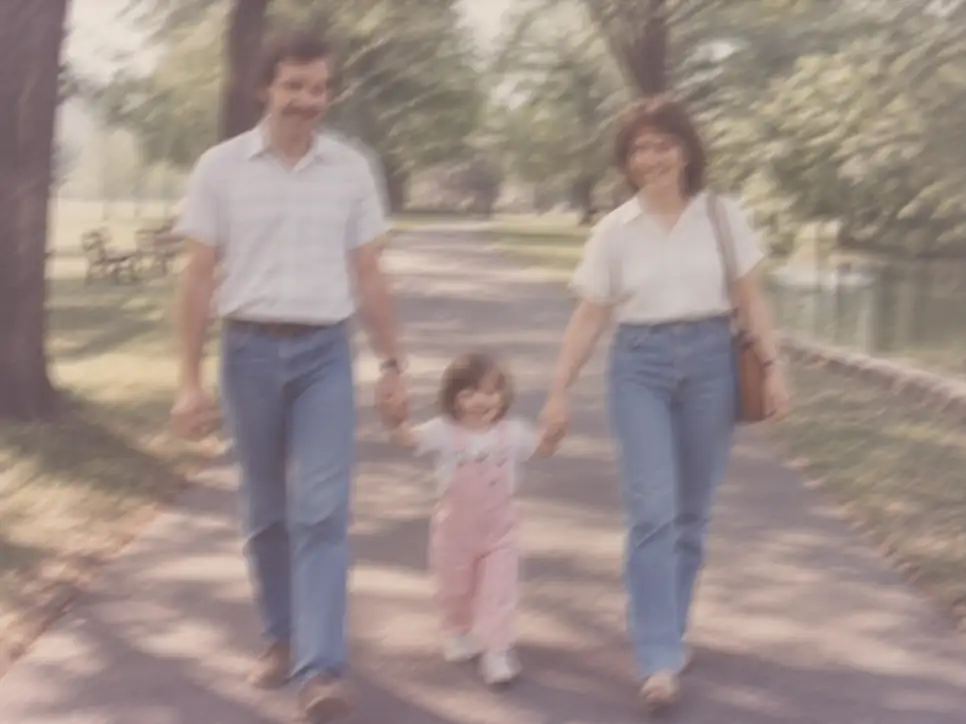
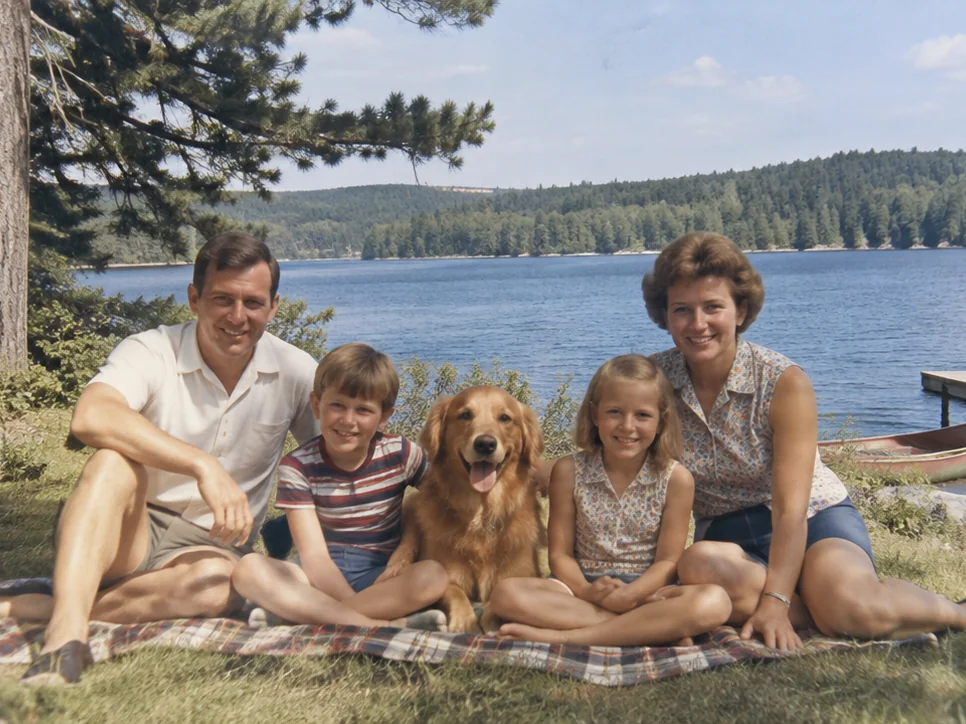
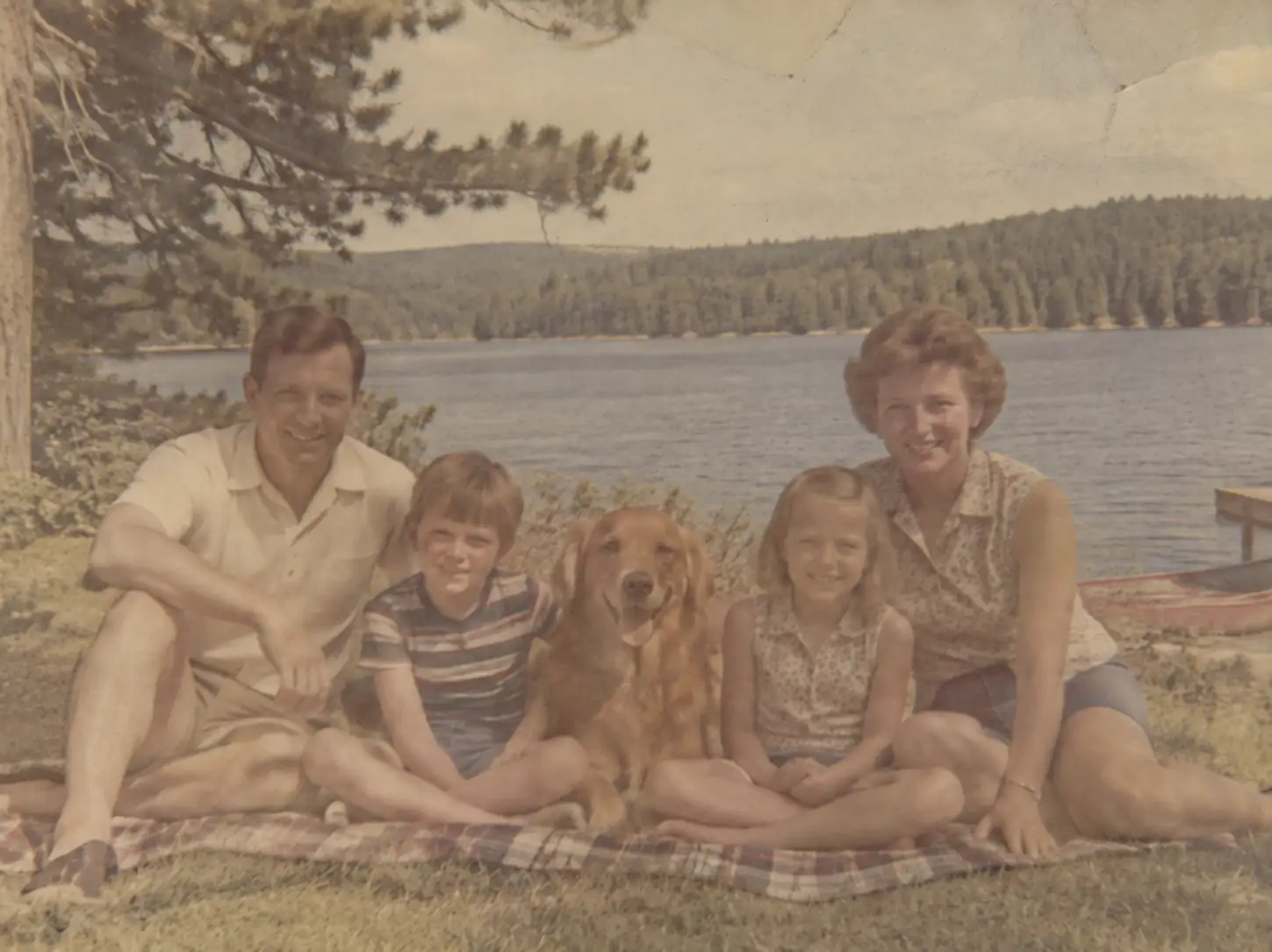
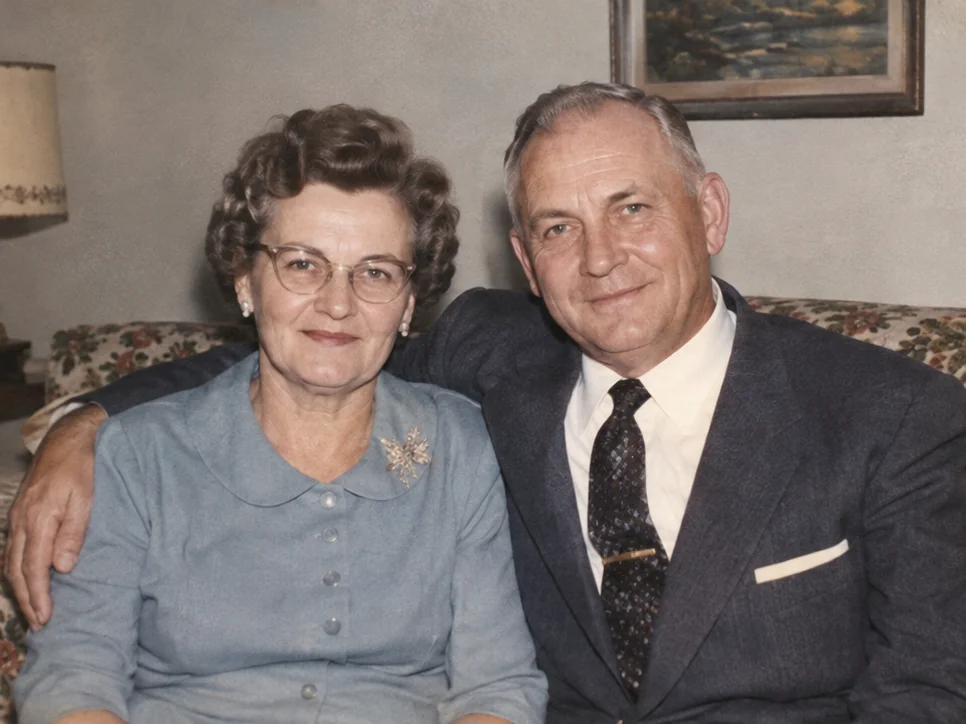
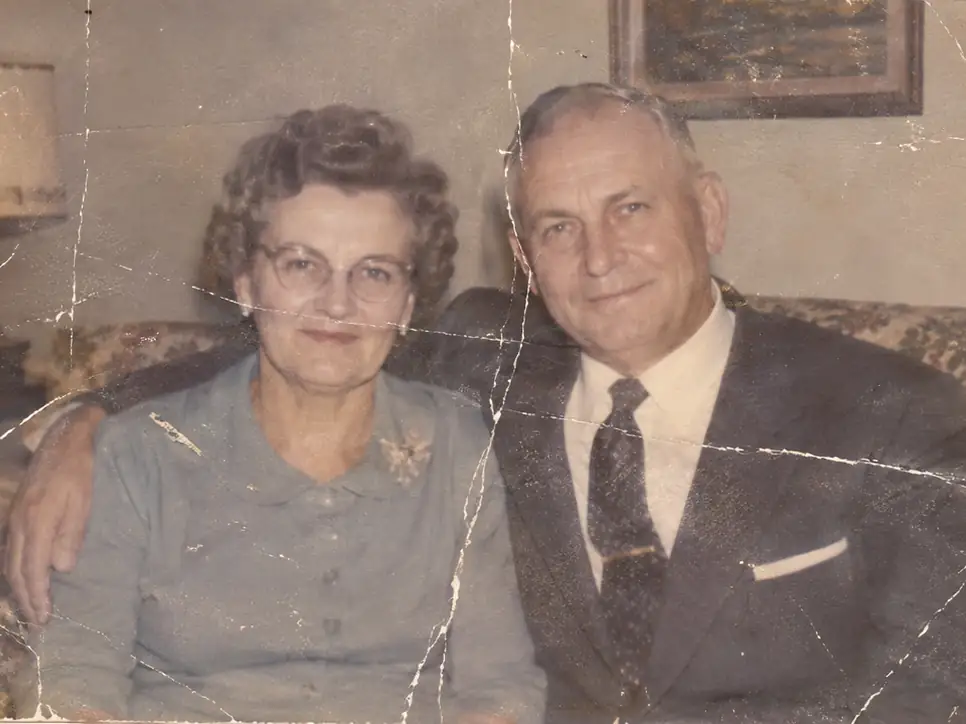
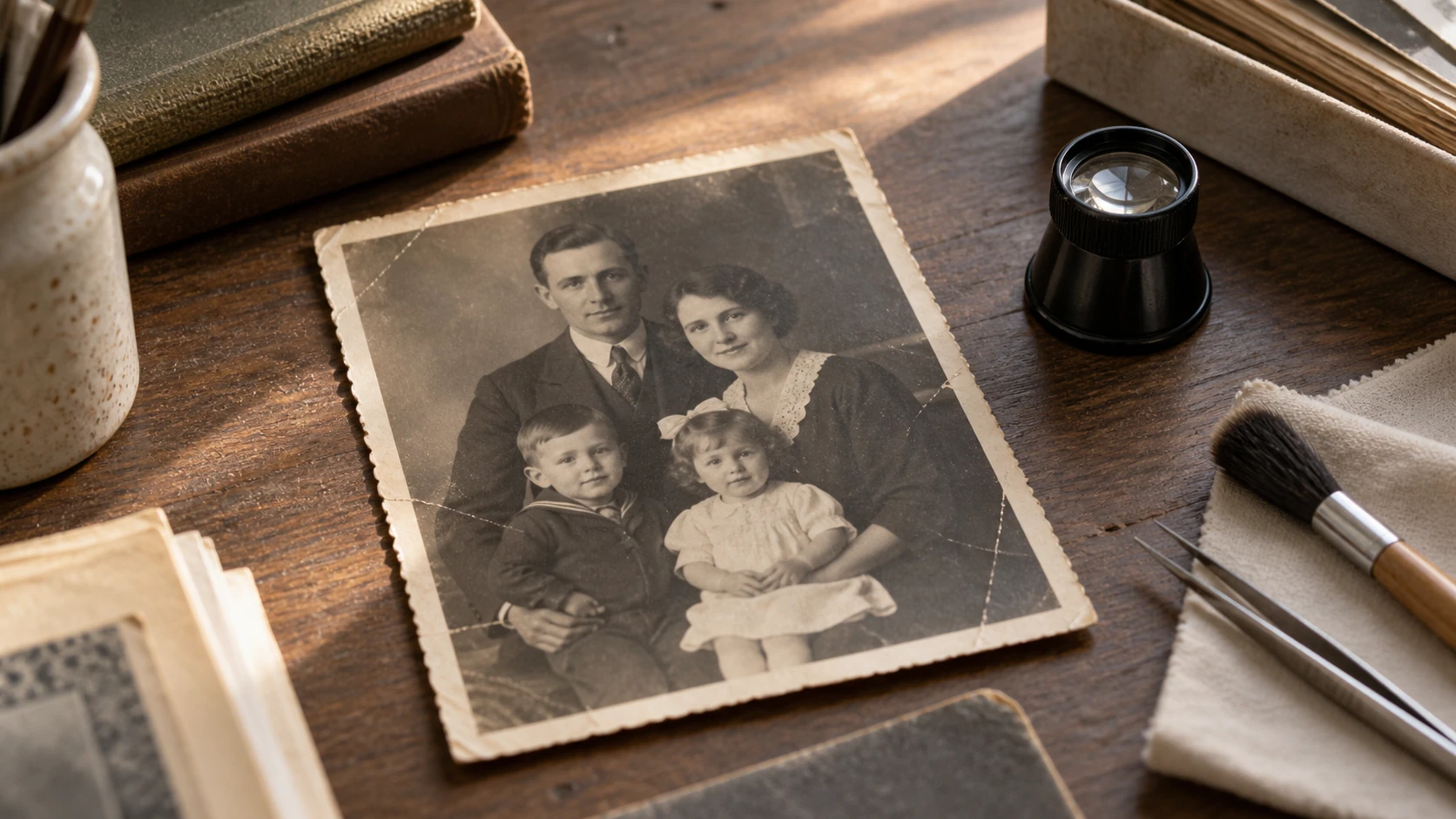
Restore a faded family portrait afterRestore a faded family portrait before
After
Before
Drag left/right to compare

Upload your photo for instant damage detection and repair

Common repair options

Select one or more options for targeted enhancement of matching defects.

1 selected

No image storage, 100% privacy protection. By uploading, you agree to Terms and Privacy Policy. Terms · Privacy

No signupInstant previewPrivacy-first protection

More real photo repair examples

Review real before-and-after photo repair examples across blur, scratches, fading, grain, and portrait clarity. Compare texture recovery, edge cleanliness, and natural tone rendering in each case, then open the matching tool page for your exact image issue.

Fix a blurry archive scan afterFix a blurry archive scan before
After
Before
Drag left/right to compare

Blur recovery and edge reconstruction

Sharper edges and improved readability without harsh halos.

Detailed overview

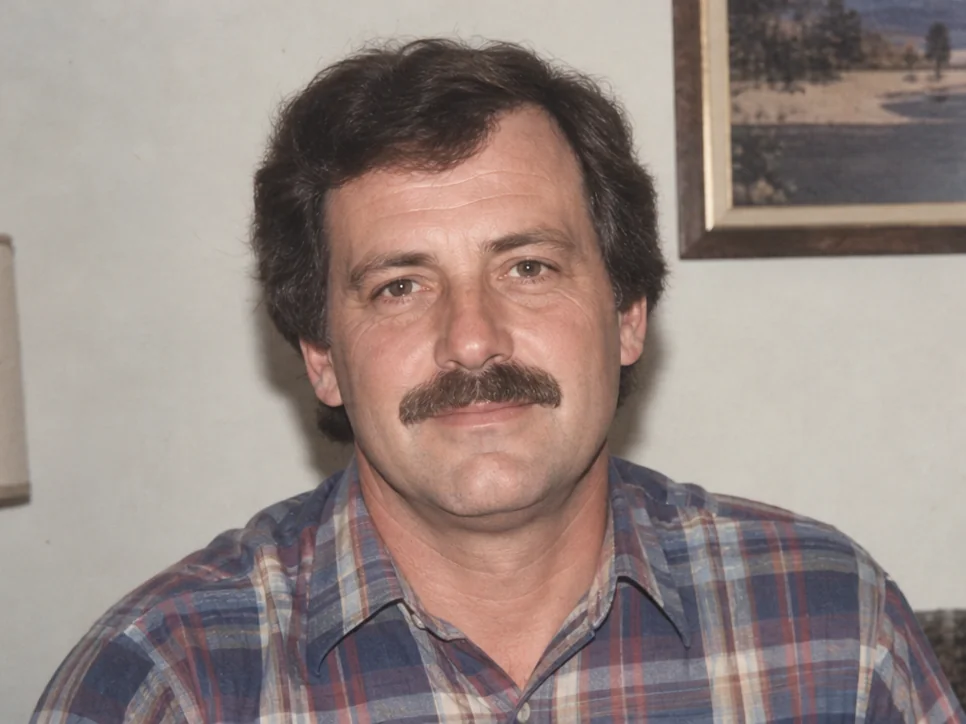
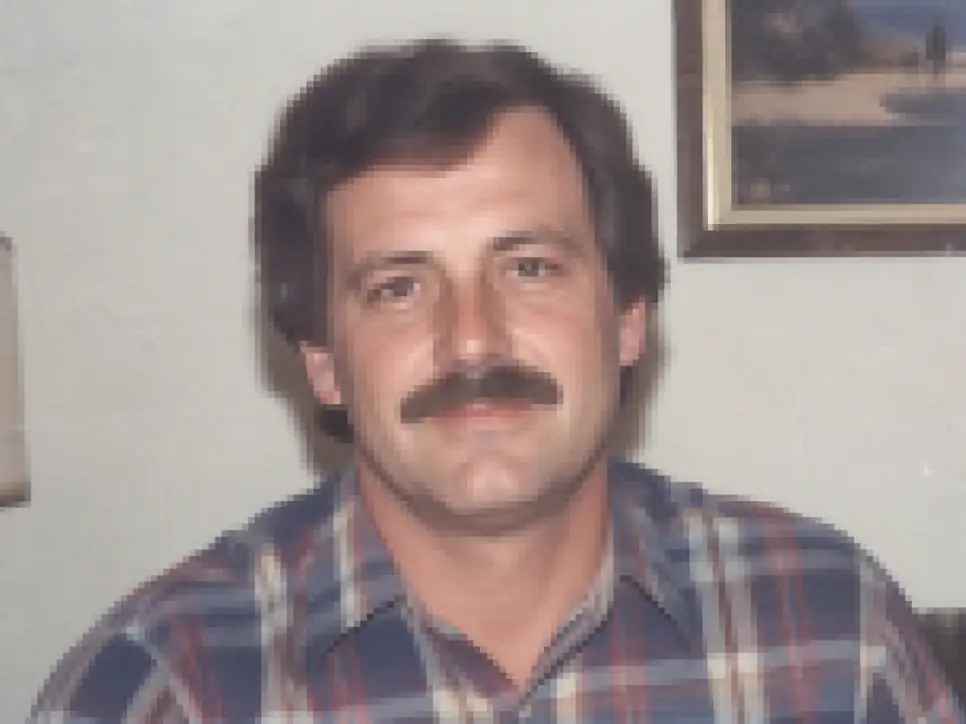
This case focuses on old scans and shaky captures where outlines melt together. The processing separates major subjects from the background, reconstructs usable edges, and restores legibility without producing harsh digital halos.

  • Rebuilds facial and object contours from soft, low-contrast blur
  • Improves readability of medium-size details for archive and sharing
  • Controls oversharpening to avoid crunchy edges
Blurry photo fix
Remove scratches from old print afterRemove scratches from old print before
After
Before
Drag left/right to compare

Scratch cleanup with texture preservation

Crease and scratch artifacts reduced while preserving textures.

Detailed overview

For printed photos with crease marks and scratch damage, this pass removes linear artifacts while protecting surrounding texture continuity, so repaired regions blend naturally with original paper grain and skin texture.

  • Suppresses scratch lines and crease interruptions
  • Keeps nearby texture transitions visually consistent
  • Avoids flat patch artifacts on repaired zones
Scratch removal
Enhance low-resolution details afterEnhance low-resolution details before
After
Before
Drag left/right to compare

Resolution enhancement for clearer detail

Super-resolution adds clearer details for sharing and print.

Detailed overview

When source images are small or compressed, this stage improves perceived resolution by reconstructing fine structures and tightening edges. The output is optimized for social sharing and light print usage.

  • Improves clarity on low-resolution source files
  • Rebuilds fine structures for cleaner zoom-in view
  • Produces sharper but still natural-looking output
Increase photo resolution
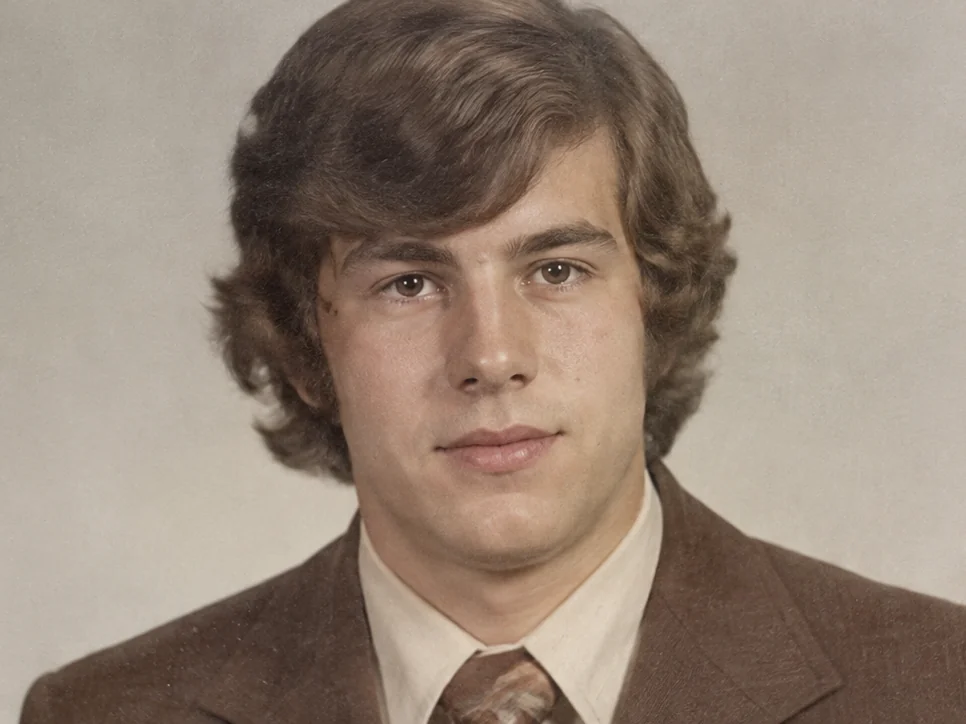
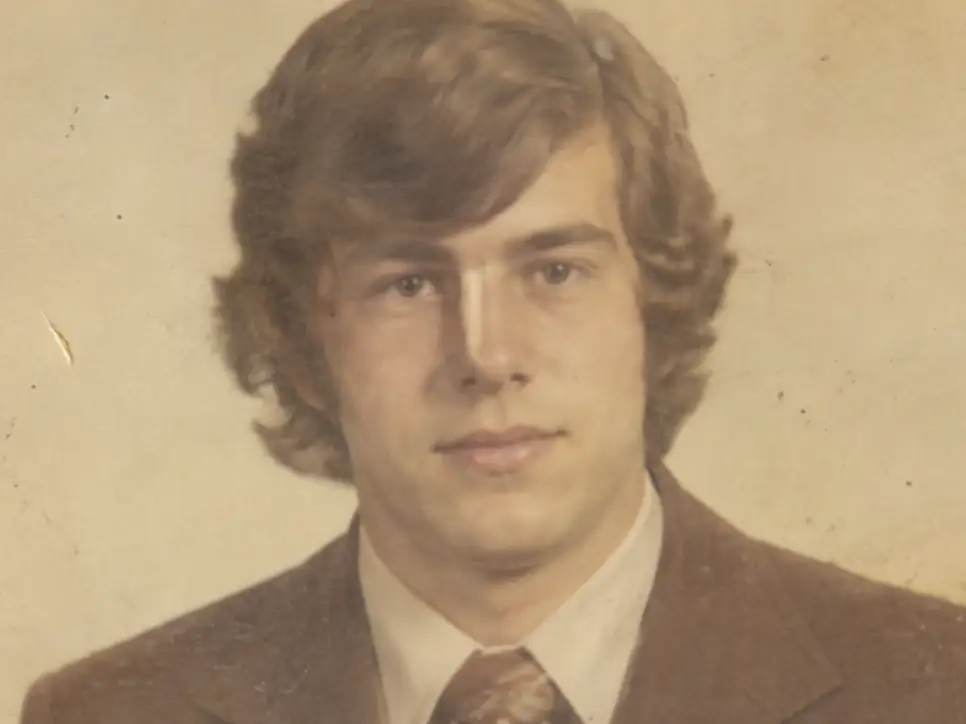
Portrait detail restoration afterPortrait detail restoration before
After
Before
Drag left/right to compare

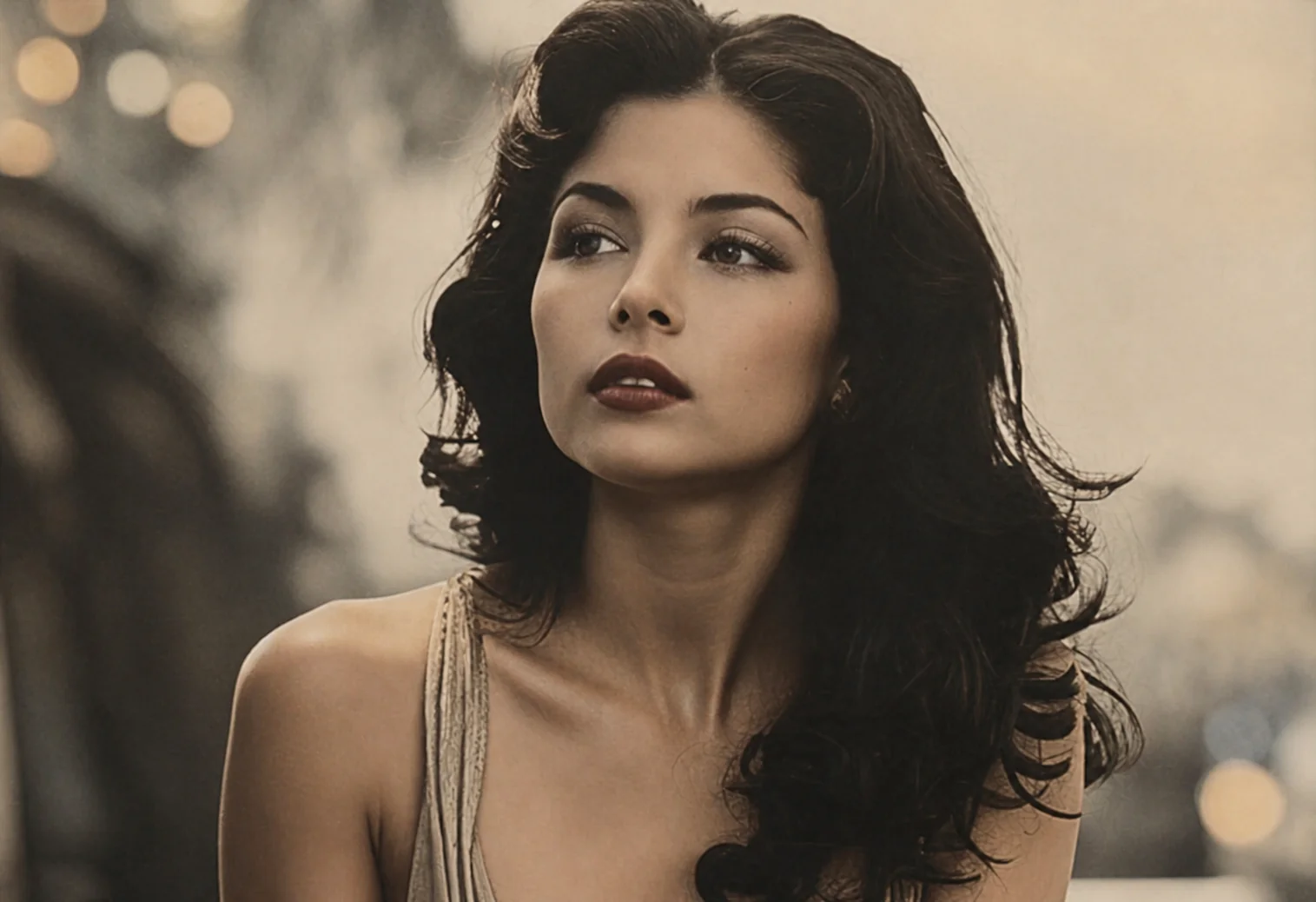
Portrait repair for clearer facial detail

Face and contour details restored while keeping natural skin texture.

Detailed overview

This portrait-focused repair mode enhances facial micro-contrast and contour readability while keeping skin texture believable. It is tuned for old family portraits and soft-focus headshots that need clarity without a fake look.

  • Improves facial contour and feature readability
  • Preserves natural skin texture and tone
  • Balances sharpness to avoid plastic portrait artifacts
Portrait restoration
Repair heavy scratch damage afterRepair heavy scratch damage before
After
Before
Drag left/right to compare

Repair heavy scratch damage

Strong scratch and crease artifacts are cleaned while retaining natural texture continuity.

Detailed overview

Strong scratch and crease artifacts are cleaned while retaining natural texture continuity.

  • Compare subject clarity and texture continuity before and after repair
  • Check that edges and details stay natural without over-processing
  • Confirm the output is ready for archive, sharing, or print use
Scratch removal
Recover severe blur details afterRecover severe blur details before
After
Before
Drag left/right to compare

Recover severe blur details

Rebuilds edge definition in blurry shots while keeping textures natural.

Detailed overview

Rebuilds edge definition in blurry shots while keeping textures natural.

  • Compare subject clarity and texture continuity before and after repair
  • Check that edges and details stay natural without over-processing
  • Confirm the output is ready for archive, sharing, or print use
Blurry photo fix
Recover faded color balance afterRecover faded color balance before
After
Before
Drag left/right to compare

Recover faded color balance

Brings back washed-out tones and improves color separation while keeping the image natural.

Detailed overview

Brings back washed-out tones and improves color separation while keeping the image natural.

  • Compare subject clarity and texture continuity before and after repair
  • Check that edges and details stay natural without over-processing
  • Confirm the output is ready for archive, sharing, or print use
Faded photo restoration

How it works

Three simple steps from upload to repaired photo

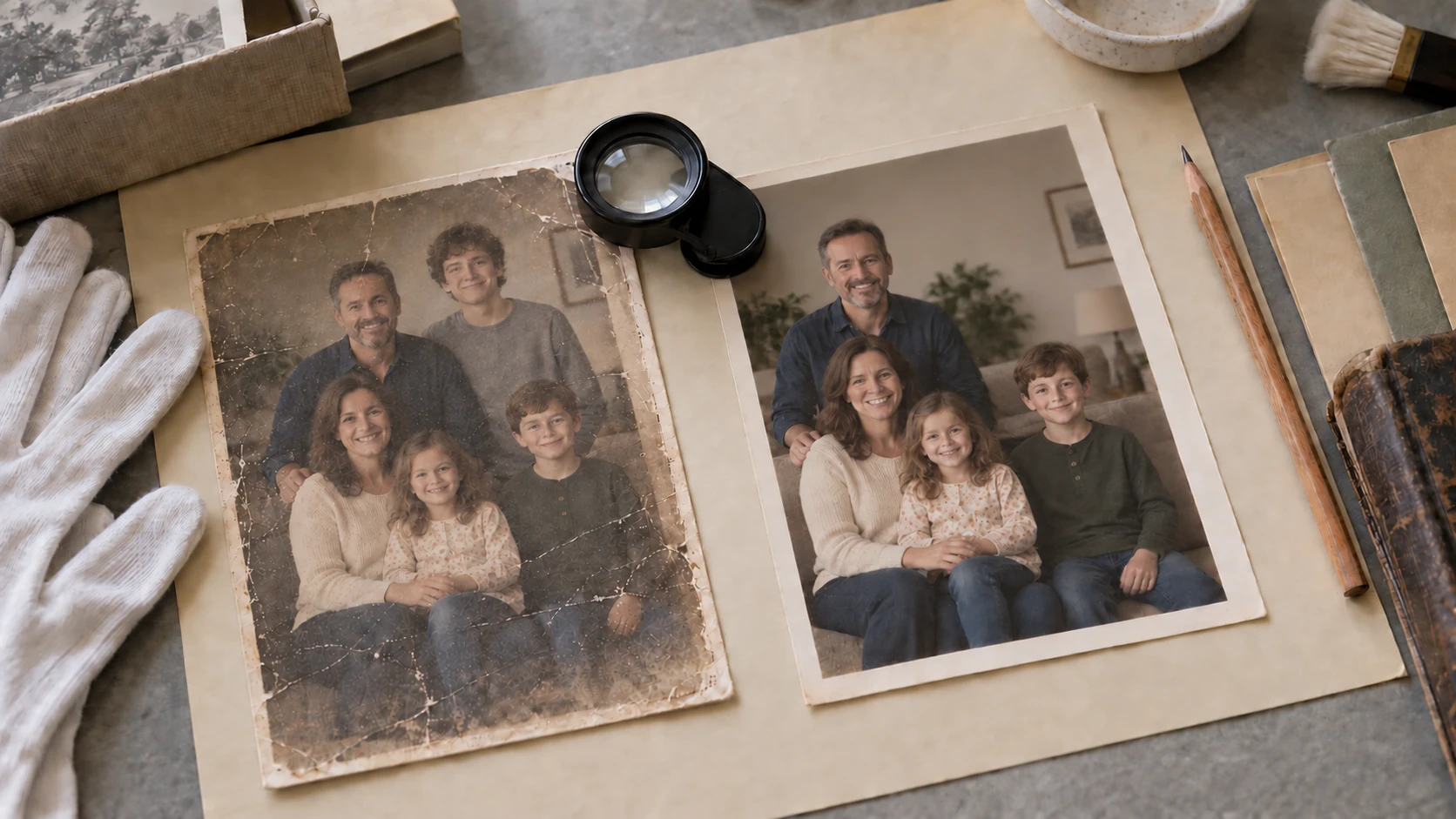
A clean photo repair workflow helps users trust the result faster. Upload the original photo, choose the right AI repair mode, then review a realistic before-and-after preview before downloading the repaired image.

Step 01Original upload

Upload your photo

Start with the original file, whether it is a faded family portrait, a blurry scan, or a damaged old print. The uploader is built for quick testing so users can begin from the first screen without friction.

Restore a faded family portrait upload thumbnail
Upload photo

Drag image into uploader

Drag here or click to upload
Step 02AI mode selected

Select repair mode

Choose the most relevant workflow based on the main damage type, such as old photo restoration, blur fix, scratch removal, denoise, or resolution enhancement. This keeps the photo repair focused and more natural.

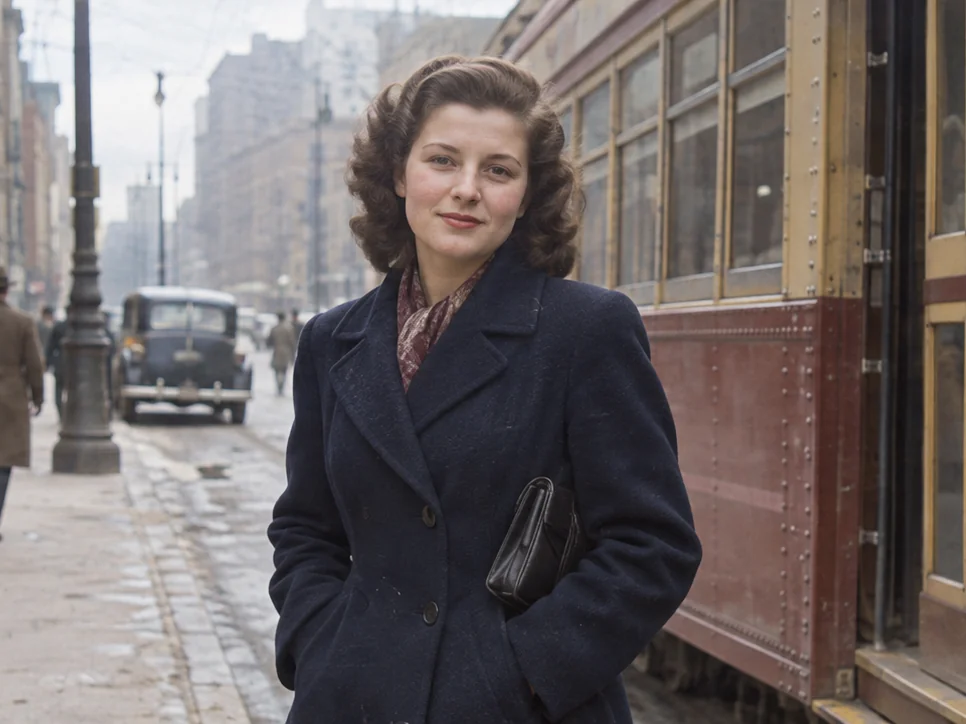
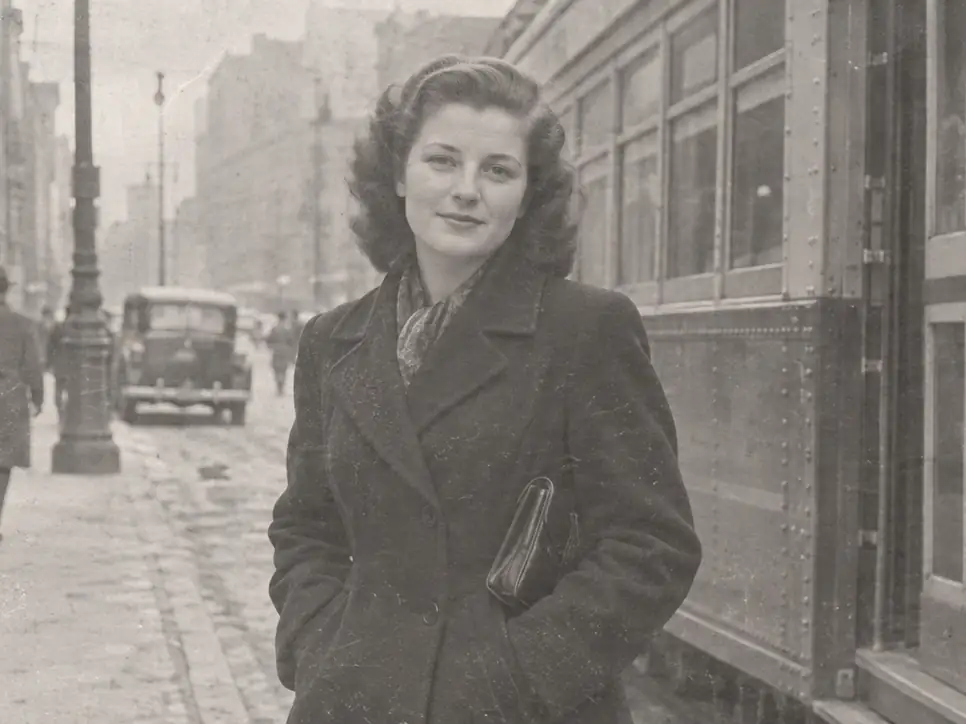
Restore a faded family portrait before
Before
Restore a faded family portrait after
After
Step 03Preview ready

Preview and download

Review the repaired image with clearer texture, cleaner edges, and more balanced tone before unlocking the final result. This makes the final download feel like a verified improvement, not a blind export.

Restore a faded family portrait after
Restored

Why use our photo repair tool?

Designed for real damaged photos, from old family scans to blurry phone captures, with photo repair quality you can validate visually.

Showcase sample (before)
Showcase sample (after)

Multiple image formats

Upload PNG, JPG, JPEG, or WEBP photos and start photo repair in seconds.

Mode-based AI repair

Pick targeted repair modes for blur, scratches, fading, noise, old photos, and portrait detail recovery.

Browser-based workflow

Repair photos directly in your browser without installing desktop software.

High-definition output

Generate clean, high-quality restored results suitable for archive, sharing, and print prep.

Privacy-first processing

Your uploads are processed privately with automated cleanup scheduling.

No signup to start

Try photo repair from the homepage uploader first, then unlock full results when needed.

Pricing

Simple pricing for real repairs

Start free, then pick a credit pack when you need full downloads. Compare what you get across plans.

Free

Try the workflow and see instant before/after preview.

Try it
$0no card
  • Instant before/after preview
  • Sign in to start
  • All repair modes available

Starter Pack

Best for occasional repairs.

Most popular
$4.99one-time

100 credits · Up to 10 repairs

  • Full-resolution downloads
  • All repair modes included
  • Private processing & cleanup
  • ≈ $0.50/repair

Pro Pack

Lower cost per repair for heavy usage.

Best value
$14.99one-time

400 credits · Up to 40 repairs

  • Full-resolution downloads
  • All repair modes included
  • Private processing & cleanup
  • ≈ $0.37/repair

FAQ

Can I repair old family photos, faded prints, or scanned albums online?

Yes. The homepage uploader is designed for common photo repair tasks such as scratches, fading, blur, grain, yellowing, and low-resolution scans. If your image is an old family photo, start with Old Photo Restoration. If the main issue is blur, noise, or missing detail, choose the matching repair mode for a more focused result.

What kinds of improvements can the tool make?

The tool can improve clarity, repair scratches, reduce noise, recover faded color, enhance portraits, and increase perceived image quality for printing or sharing. Results depend on the original file, but the goal is to preserve a natural look while recovering detail, tones, and facial features as much as possible.

Will restoring or upscaling my photo make it look artificial?

The processing is tuned to avoid harsh oversharpening, plastic skin, and unnatural color shifts. Instead of simply adding contrast, the workflow aims to recover clean edges, balanced tone, and realistic texture. Very damaged images may still have limits, but the output is optimized to look more natural than aggressive one-click filters.

Do I need to sign in before using the homepage tool?

You can start by uploading a photo directly from the homepage without signing in. After the result is generated, you will be asked to sign in if you want to unlock the full result and download it. New users can use the first unlocked result for free, and additional usage requires payment.

Is my uploaded photo private, and how long is it stored?

Uploads are processed privately by default. The product is designed so users can test photo repair quickly without making their files public, and uploaded assets are scheduled for automatic deletion within 24 hours. Before launch, the final privacy policy and storage rules should match the actual server-side deletion workflow.

Ready to repair your photos?

Old photo restoration
  • Demo BadgeVerified
  • Demo BadgeVerified