

After
Before
↔
 PhotoRepair
Add natural-looking color to black-and-white portraits, family snapshots, and street scenes.
Color is added to skin, clothing, and the background in restrained tones, following the original light and shade so the scene still feels consistent.
Select multiple images or scan an old photo
Repair parameters
Choose color saturation and pick between natural modern tones or a softer vintage palette.
100% privacy protection. By uploading, you agree to Terms and Privacy Policy.
These examples help you evaluate believable colorization before uploading your own black-and-white photo.
Focus on facial tones, clothing colors, and scene-level color harmony.
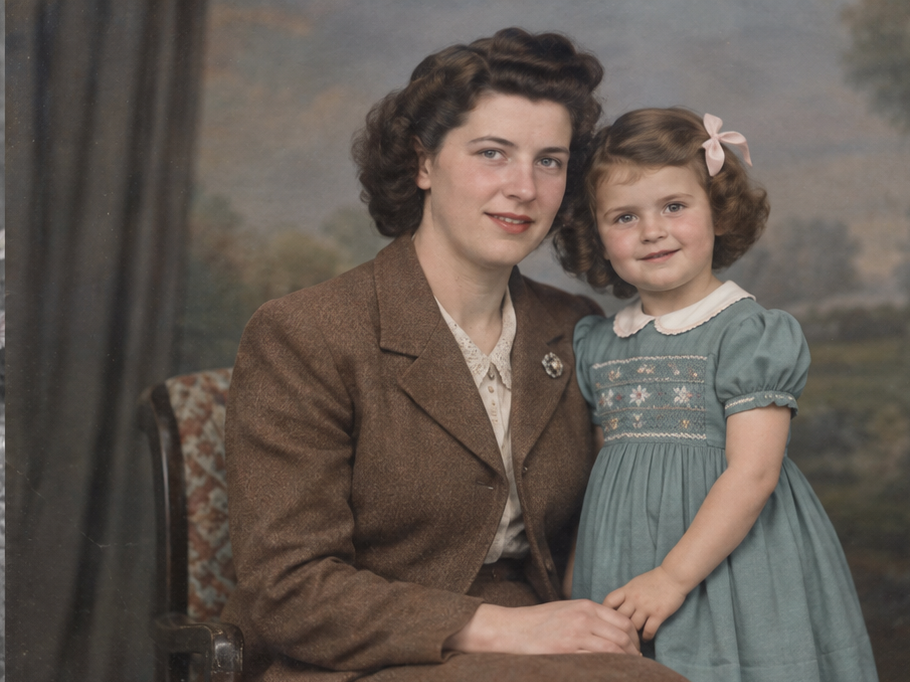
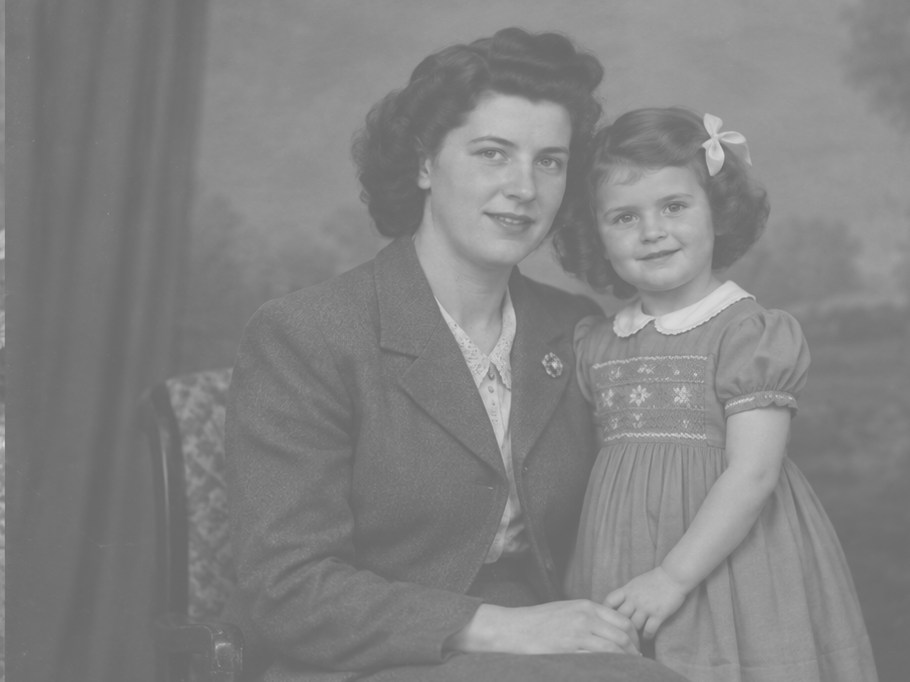
Skin, hair, and clothing gain color while the portrait’s original light and shadow remain, preserving its depth.
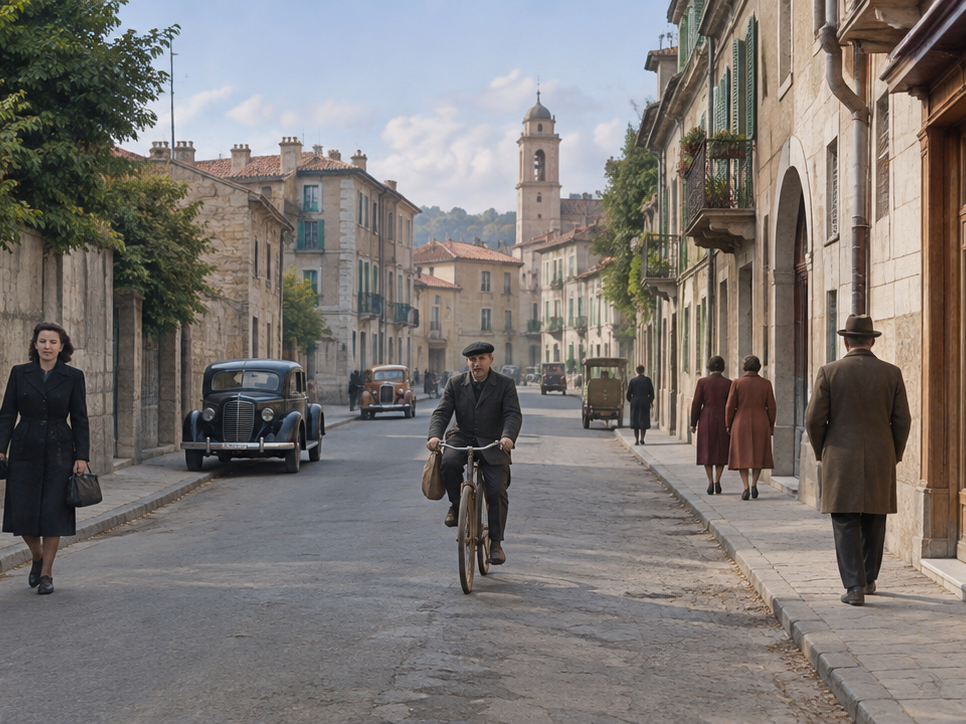
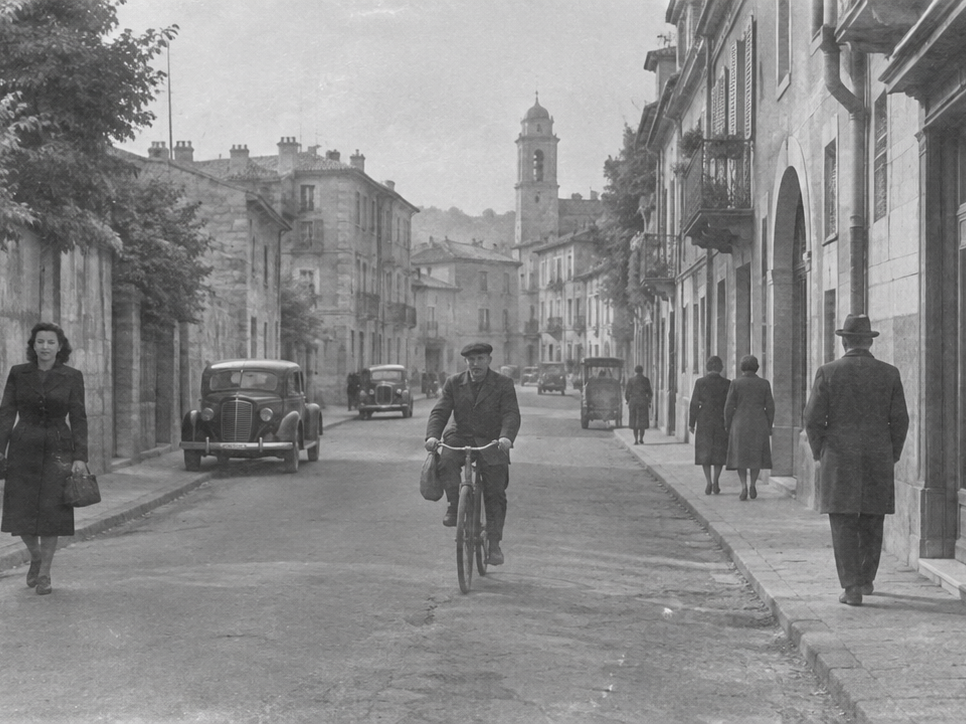
Street and building colors look natural while the scene keeps its period character and original light.
The tool uses visible scene details to suggest plausible colors. Exact original colors cannot always be known from a monochrome image.
People, clothing, buildings, and the setting provide clues for choosing colors that fit the image.
Example
Portrait → skin and clothing; Street → buildings and surroundings
The tool suggests plausible tones based on the image. Since black-and-white photos do not retain exact color information, some choices are necessarily estimates.
Example
A clear preview helps you judge the suggested skin, clothing, and background tones.
Choose balanced natural color or a softer vintage look, then adjust overall saturation to suit the photo.
Example
Natural → clearer color; Vintage → softer, warmer tones
Workflow
On the colorize black and white photos page, review examples and the approach before deciding whether to upload a photo.
Drag image into uploader
AI identifies the scene type — portrait, street, or nature — then maps each gray level to a plausible color range based on contextual cues.
Choose between natural modern colors and a softer vintage palette. Skin tones and common objects are mapped intelligently based on scene context.
Confirm the colors feel believable and the mood is right, then download the high-quality output to bring black-and-white memories to life.
The examples below help you determine which photo problems this tool addresses and what results to expect.
Colorize a family portrait
Problem: A monochrome portrait does not show the original clothing or setting colors.
Result: Plausible skin and clothing tones add context while preserving the expression.
Add color to an archival street scene
Problem: The black-and-white image makes buildings, clothing, and street details harder to imagine.
Result: Restrained color helps distinguish the scene without changing its composition.
Revisit a wedding snapshot
Problem: An old wedding photo has lost the colors of the clothes and surroundings.
Result: A natural palette makes the moment easier to picture while keeping its vintage character.
Pricing
Start free, then pick a credit pack when you need full downloads. Compare what you get across plans.
Try the workflow and see instant before/after preview.
Best for occasional repairs.
100 credits · Up to 10 repairs
Lower cost per repair for heavy usage.
400 credits · Up to 40 repairs
 Stripe
If you experience any payment difficulties, contact support@photorepair.app.
Answers about upload, results, and whether this tool fits your photo.
FAQ guide
Start here for the most common questions about using this tool.
The tool uses visible context—such as people, clothing, and the setting—to suggest plausible colors. These are estimates, since the original colors cannot always be known from a monochrome image.
The result aims for balanced, believable tones rather than strong saturation. Exact colors may differ from the original, so review the preview and adjust the style or saturation to suit the photo.
Yes. Choose a natural style for balanced colors or a softer vintage style for a warmer, more subdued look.
Yes. Clear faces and clothing give the tool useful visual context. Results are usually easier to review when the original portrait has good contrast and is not heavily damaged.
Photos with a clear subject, visible edges, and reasonable contrast are a good starting point. Very faded, blurred, or damaged images provide less context, so their color choices may be less certain.
You can choose a natural or soft vintage style and adjust overall saturation. Individual object colors cannot currently be edited separately.
Start now
Upload the original first, preview the result, then unlock the HD export after sign-in.
More ways to fix it
If this tool isn't the best match, switch to one that more precisely addresses your photo's specific issue.
AI colorization · Historical color reference · Free online tool