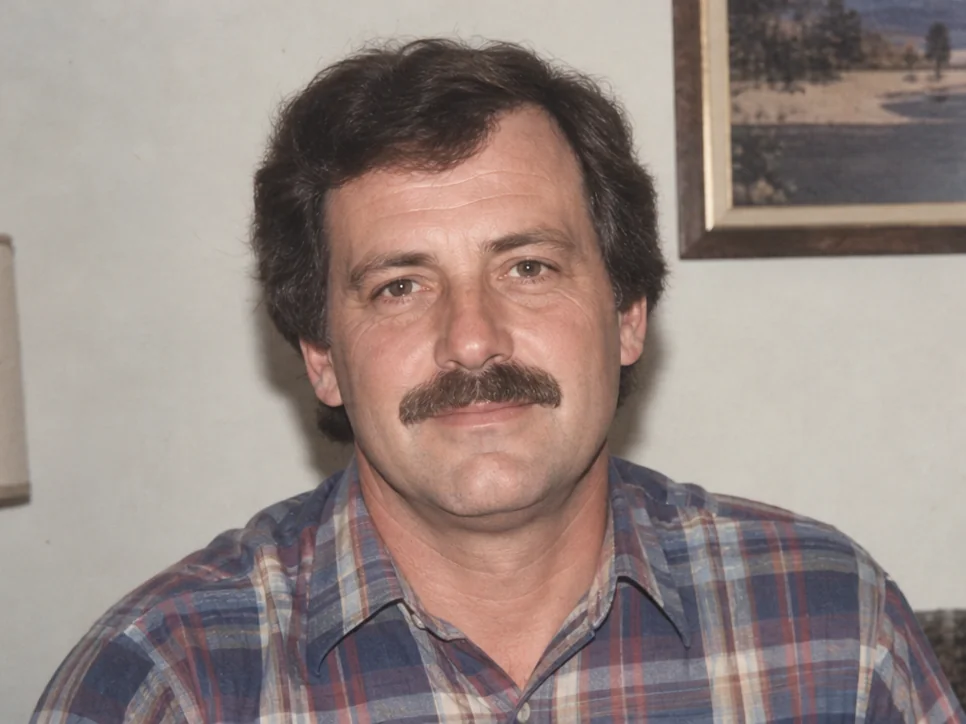
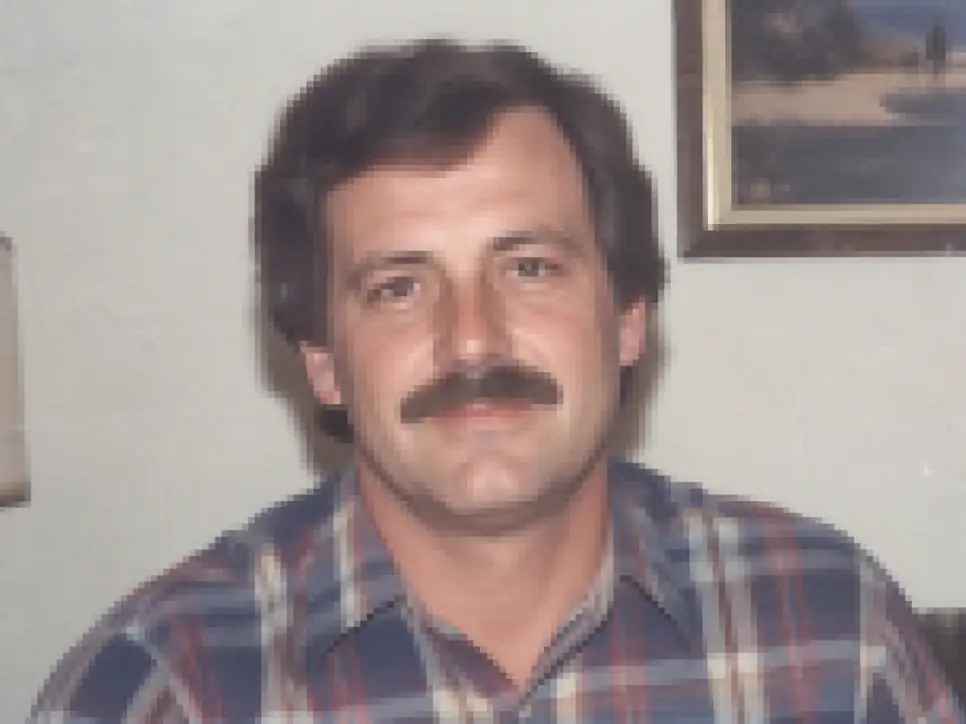
After
Before
↔
 PhotoRepair
Make small or low-res photos larger and easier to use without a stretched look.
Select multiple images or scan an old photo
Preview detail reconstruction after enhancement to decide if your image is ready for print or reuse.
Inspect text clarity, edge sharpness, and texture quality after scaling.
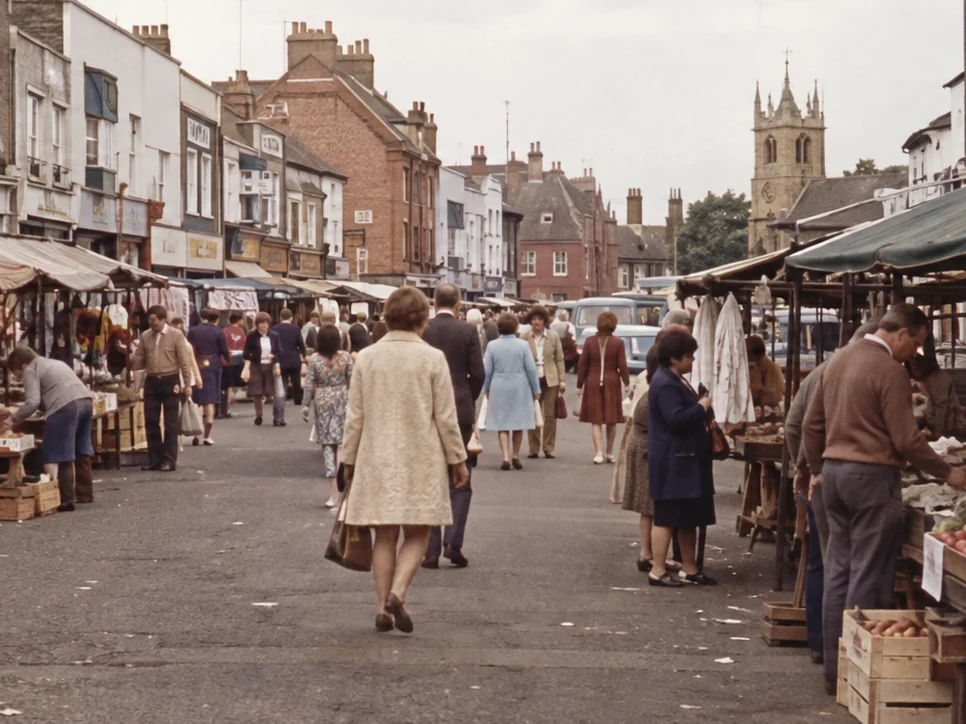
Eyes, fine hair, and portrait edges are easier to distinguish after enlargement, making the image more useful to view.
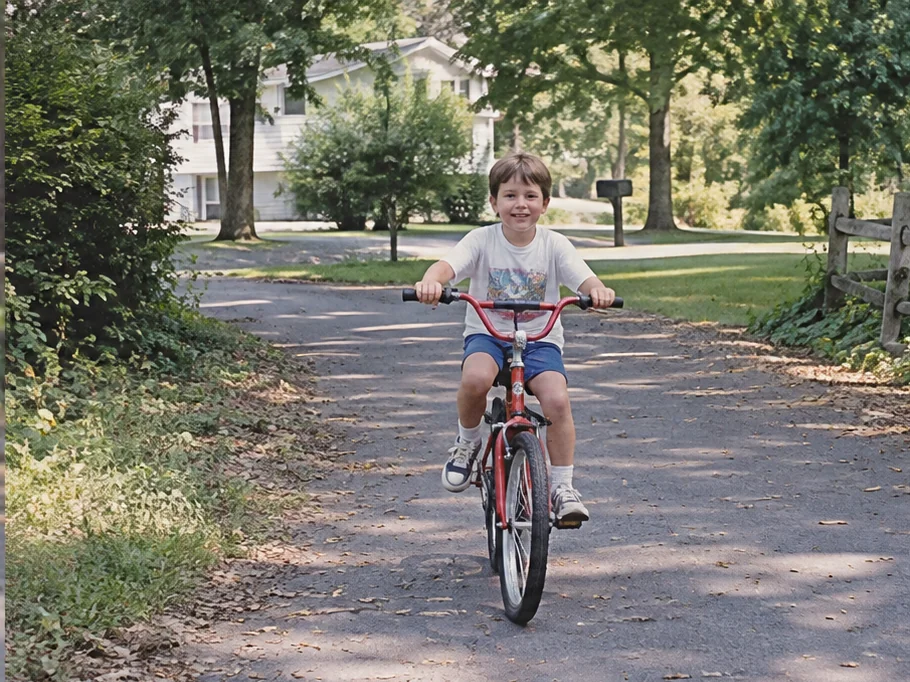
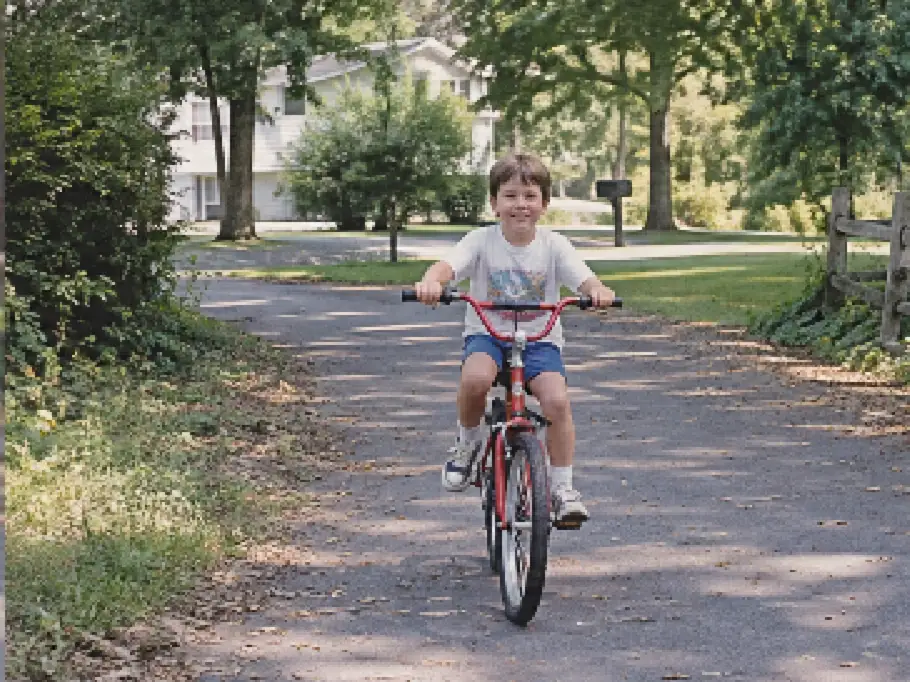
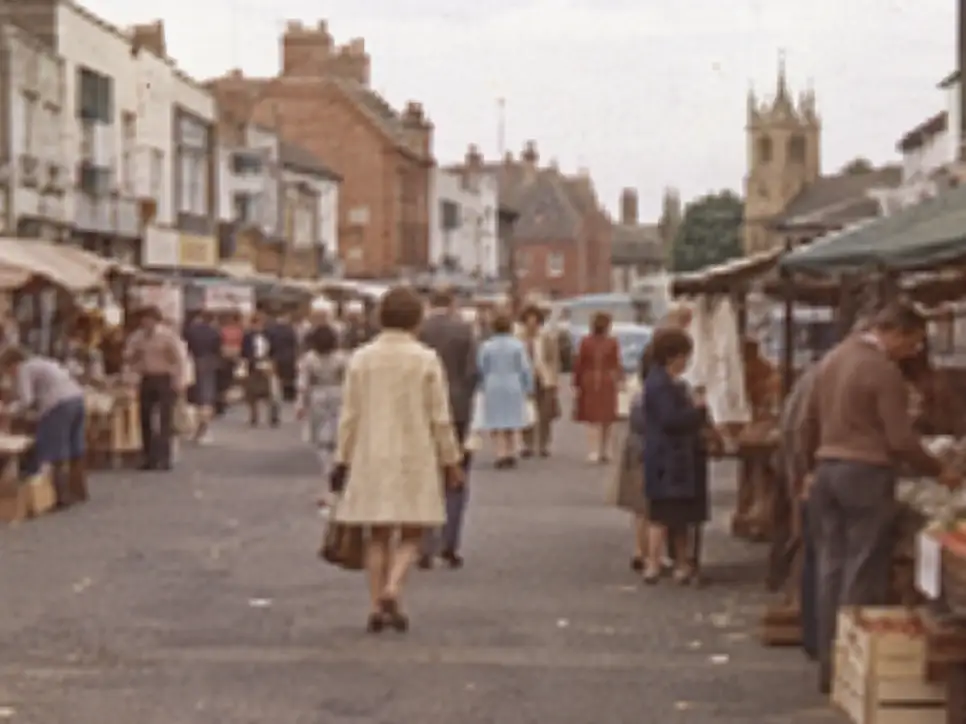
Text and surface texture are clearer at larger sizes, making scanned images easier to read or print.
Effective resolution enhancement is not just about adding pixels — it is about reconstructing texture and edge detail. Zoom in to see the difference.
Low-res original
Low-res: features are blocky and undefined at larger sizes.
AI enhanced
Enhanced: facial contours are reconstructed with clean edges and natural texture.
Low-res original
Low-res: text characters are jagged and barely legible.
AI enhanced
Enhanced: character edges become smooth and readable at higher output sizes.
Low-res original
Low-res: fabric, wood grain, and other textures lose their pattern definition.
AI enhanced
Enhanced: texture patterns are intelligently reconstructed while avoiding fake detail.
Upscaled resolution does not always meet print requirements. Use this reference table to evaluate whether output resolution and sharpness match your target print specifications.
| Scale | Output | Best use |
|---|---|---|
| 1× (Original) | Original resolution | Social media, websites, digital frames, on-screen presentations |
| 2× | ~4× pixel count | Small prints (up to 6×4"), photo books, casual sharing |
| 4× | ~16× pixel count | Large prints (A4+), archival copies, professional layouts |
Workflow
On the photo resolution enhancer page, review examples and the approach before deciding whether to upload a photo.
| Zone | Expected gain | Pipeline step | Preview |
|---|---|---|---|
| Face | +42% | Upload the small or low-res photo Start with the largest source file available to maximize the real detail the system can work with before enlargement. Source photo | Upload photo Drag image into uploader Drag here or click to upload |
| Text | +51% | Enlarge it more cleanly The image is scaled with focused attention to faces, text, and texture — so the enlarged result is genuinely more usable rather than simply stretched. Upscaling | |
| Texture | +38% | Preview the larger result Before downloading, zoom in to verify the photo holds together well at the larger size for sharing, printing, or saving. Preview | |
Zoom QA: inspect edge ringing, text legibility, and texture repetition before final export.
The examples below help you determine which photo problems this tool addresses and what results to expect.
Problem
The original image looks fine on a phone but falls apart on a larger screen.
Result
The portrait holds together better at a bigger size and looks less fragile.
Make an old scan more usable
Problem: The scan is too small to print or crop with confidence.
Result: The photo becomes easier to reuse for printing, framing, or saving.
Improve a compressed image download
Problem: A saved copy from the web looks weak and thin on detail.
Result: The image feels cleaner and more stable when reused elsewhere.
Pricing
Start free, then pick a credit pack when you need full downloads. Compare what you get across plans.
Try the workflow and see instant before/after preview.
Best for occasional repairs.
100 credits · Up to 10 repairs
Lower cost per repair for heavy usage.
400 credits · Up to 40 repairs
 Stripe
If you experience any payment difficulties, contact support@photorepair.app.
Answers about upload, results, and whether this tool fits your photo.
Usually yes, especially if the original still has some real detail. The goal is not just to stretch the file, but to make it hold up better at a larger size.
Yes. Printing is one of the most common reasons to use it. If a photo feels too small or too soft, this can help.
Yes. Old scans are a strong match because they often need both more size and more clarity.
That is the goal. A good upscale should make the face easier to read without changing who the person looks like.
A moderate increase is usually safest. Very small files can still improve, but the limit depends on how much real detail the original has.
Use the largest, cleanest version you have. Heavily compressed or tiny files give the tool less to work with.
Need more details? Visit the help section from the footer.
Start now
Upload the original first, preview the result, then unlock the HD export after sign-in.
More ways to fix it
If this tool isn't the best match, switch to one that more precisely addresses your photo's specific issue.
HD resolution · Detail recovery · Online