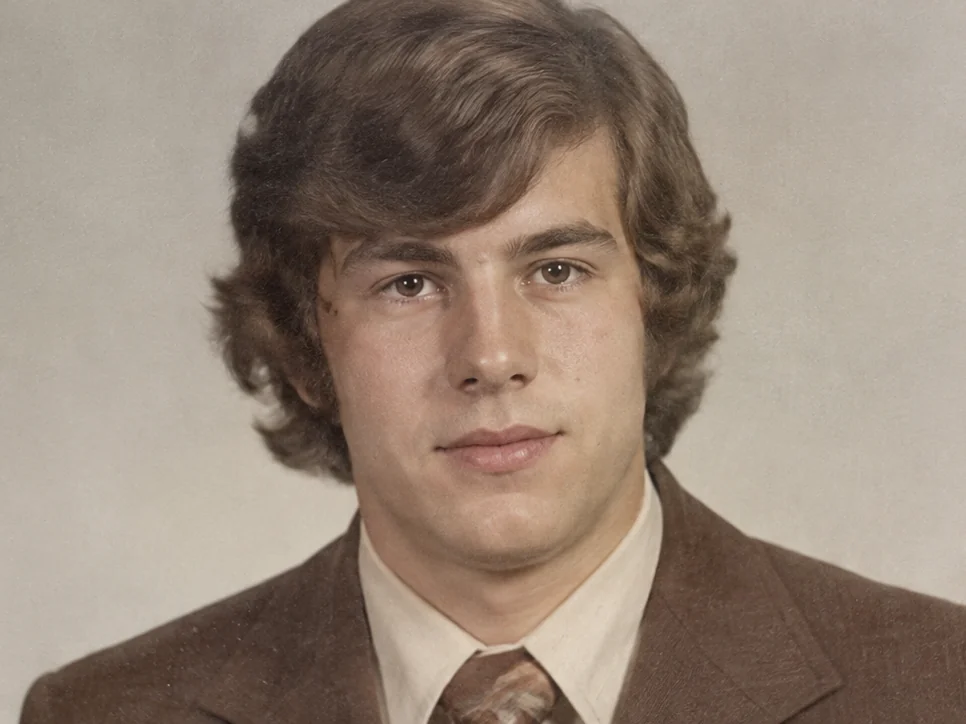
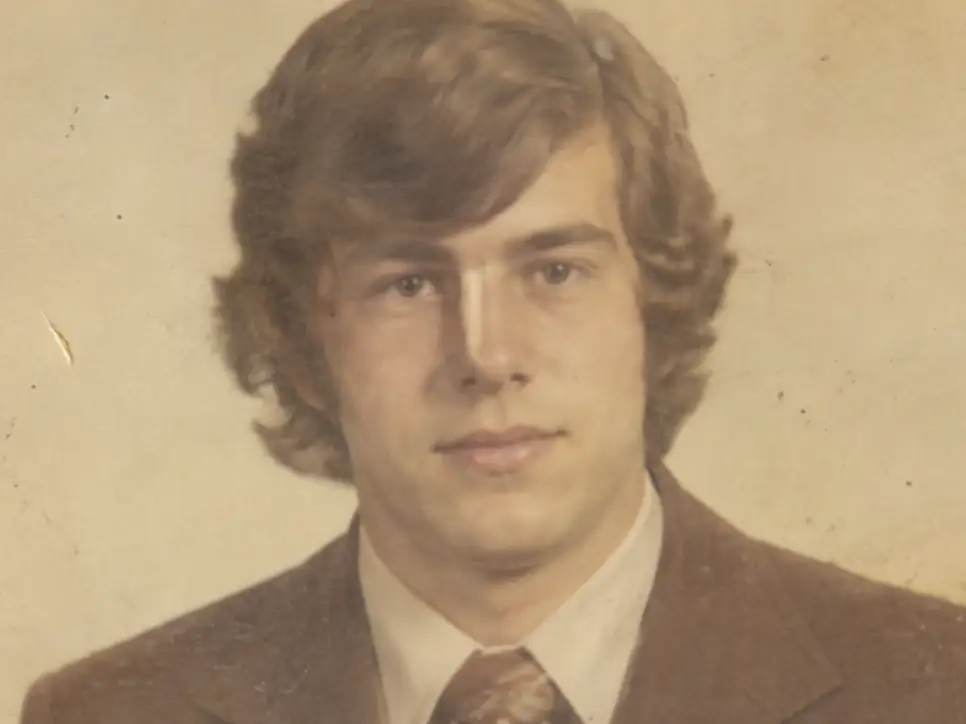
After
Before
↔
 PhotoRepair
Restore portraits while keeping the face natural and recognizable.
Select multiple images or scan an old photo
Review facial detail recovery and skin balance before restoring your own portrait photo.
Focus on eyes, hair edges, and natural skin rendering.
Eyes, lips, and the hairline are clearer while the person remains recognizable and true to the original.
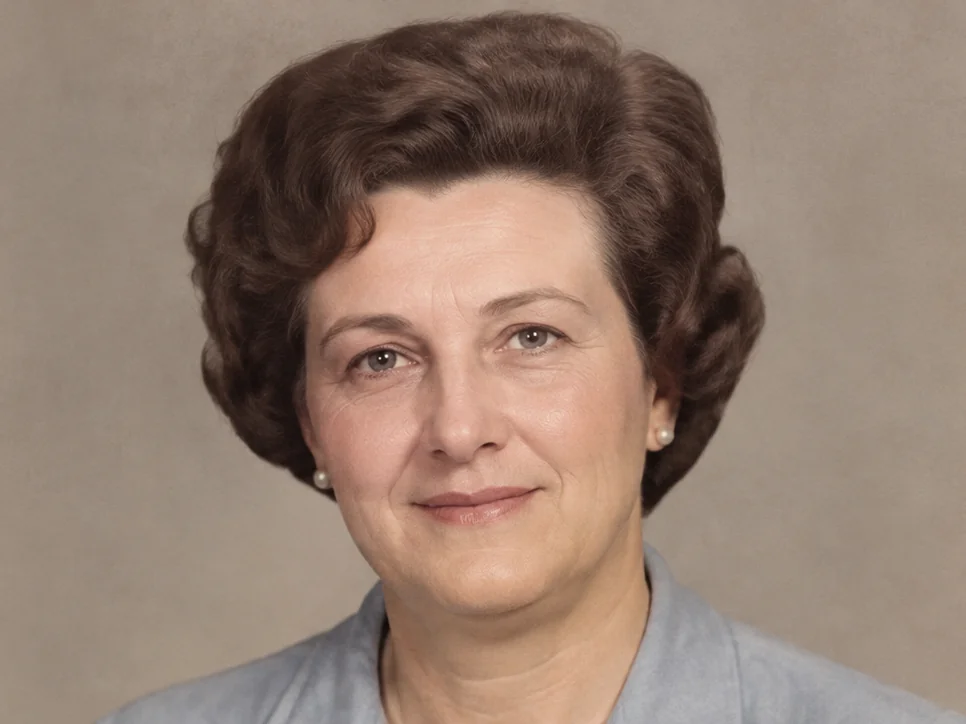
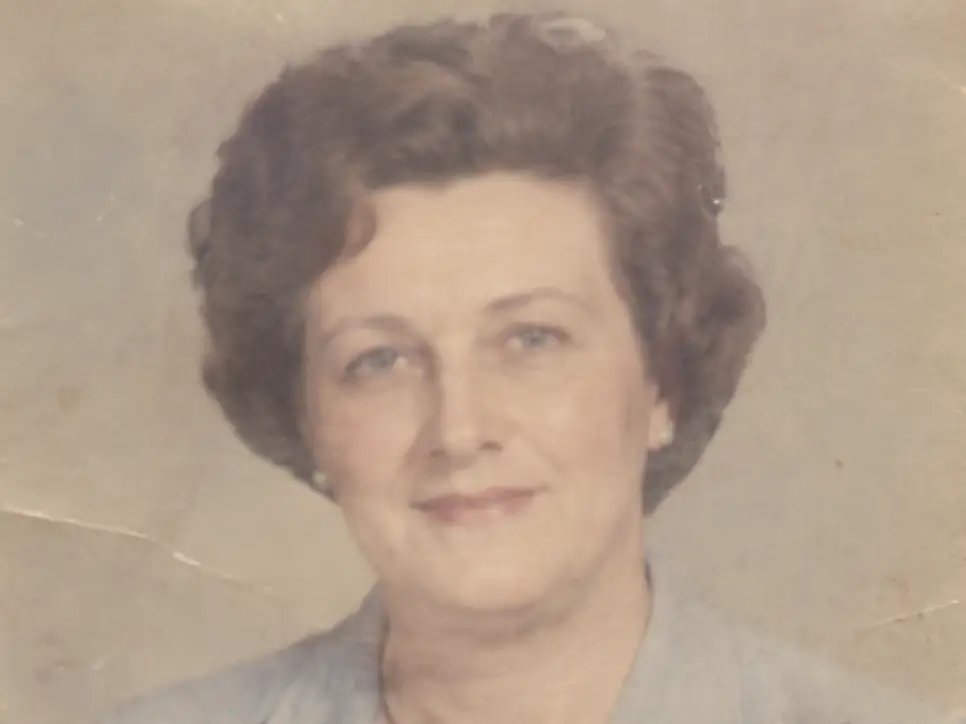
Skin tone looks more even while fine lines and natural texture remain visible, avoiding an overly smooth finish.
Improve portrait clarity while ensuring facial features remain stable and free from distortion.
The most expressive part of any portrait. AI preserves eye contours, catchlights, and brow definition — enhancing clarity without changing the person's look.
Natural skin has micro-texture. AI removes damage and noise while keeping pores and fine details intact — no waxy, over-smoothed plastic look.
Hair edges are easily lost in old or blurry portraits. AI recovers hair strand definition and maintains the natural transition at the hairline.
Lip contours define expression. AI retains natural lip shape and subtle color variations while removing surrounding damage.
The overall face shape and jawline structure. AI enhances definition while preserving the person's unique facial geometry and character.
These five zones receive the highest protection priority during restoration. Protect first, repair second — ensuring the restored portrait still looks like the same person.
The greatest risk when restoring old portraits is feature drift. Use this checklist to verify that the output remains faithful to the original person.
Eye distance ratio
Measure eye spacing relative to face width before/after.
Nose bridge contour
Keep the light-to-shadow transition of the nose profile unchanged.
Lip shape curve
Preserve the natural cupid's bow and lip corner asymmetry.
Jawline arc
Maintain the chin-to-cheek contour fall-off pattern.
Eyebrow arch
Keep eyebrow peak position and arch curvature stable.
This tool is designed around portrait restoration, helping you quickly assess which photo problems it addresses.
Puts facial identity first, so the workflow starts with the most visible damage pattern.
Avoids waxy skin and over-beautified results, avoiding over-processing and artifacts.
Cleans the portrait without changing who the person looks like, making the photo more suitable for saving, printing, or sharing.
Workflow
On the portrait restoration page, review examples and the approach before deciding whether to upload a photo.
Drag image into uploader
Use the clearest scan or original file available so the system can accurately preserve eyes, mouth, hairline, and overall facial structure.
Facial regions receive more conservative enhancement than backgrounds and other areas — the goal is a cleaner, clearer portrait without facial feature drift.
Before downloading, confirm the person remains immediately recognizable, focusing on eyes, skin texture, and facial contours.
The examples below help you determine which photo problems this tool addresses and what results to expect.
Problem
The face has gone soft and the print picked up age marks over time.
Result
The portrait looks clearer again while still feeling like the same original print.
Clean up a family portrait print
Problem: Dust, fading, and surface wear pull attention away from the person.
Result: The subject stands out more and the photo feels calmer and easier to keep.
Improve a small formal portrait
Problem: Important facial areas like the eyes and hairline no longer read clearly.
Result: Key features become easier to recognize without looking edited too heavily.
Pricing
Start free, then pick a credit pack when you need full downloads. Compare what you get across plans.
Try the workflow and see instant before/after preview.
Best for occasional repairs.
100 credits · Up to 10 repairs
Lower cost per repair for heavy usage.
400 credits · Up to 40 repairs
 Stripe
If you experience any payment difficulties, contact support@photorepair.app.
Answers about upload, results, and whether this tool fits your photo.
With a portrait, the face matters most. The photo can get cleaner, but the expression, proportions, and overall look still need to stay true.
It tries not to. Skin should still look like skin, with normal texture and transitions.
Yes. Old portrait scans are a strong fit because faces often lose definition before the rest of the image.
That is the goal. The person should still look like themselves, just clearer and easier to see.
Yes, especially if the faces feel soft because of age or wear. Clearer original faces usually give the best result.
Studio portraits, family prints, school photos, formal portraits, and old scanned headshots are all good fits. If the whole photo is blurry, try the blurry photo tool too.
Need more details? Visit the help section from the footer.
Start now
Upload the original first, preview the result, then unlock the HD export after sign-in.
If this tool hasn't fully addressed the issue, explore more targeted tools for the next step in your repair workflow.
What to expect
Portrait repair · Natural detail · Online